
Make flashcards from your notes.
Type or paste your notes, add a Word document, or take a photo of a page. Quibly turns it into flashcards and a quiz you can study from right away.

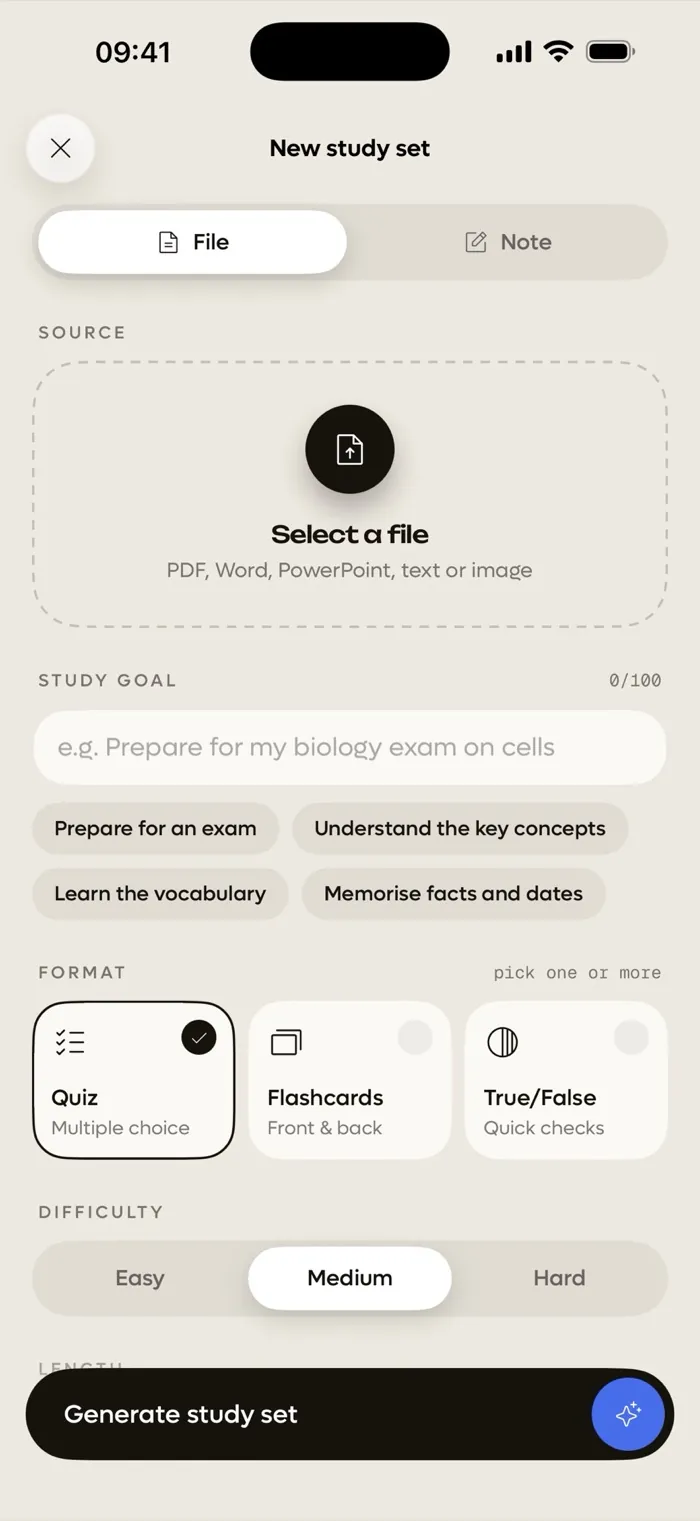
How it works
Add your notes
Type or paste notes, add a Word .docx, RTF or text file, or use photos of your pages.
Choose your formats
Flashcards, multiple choice, true/false, or all three. Add a study goal to focus it.
Study and track it
Work through the set and watch the mastery score for that lesson rise.
Why students use Quibly for this
Photos of your pages
Snap a photo of a printed page or a handout and Quibly reads the text on your iPhone, then writes flashcards and questions from it.
Typed notes and documents
Paste notes from class or add a Word .docx, RTF or plain text file. Whatever you studied from, you can quiz yourself on it.
Know what needs review
Each lesson gets a mastery score that rises as you study and fades when you stop, so you can see which notes need another pass.
Questions
Can I make flashcards from a photo of my notes?
Yes. Quibly reads the text in your photo on your iPhone, then creates the flashcards.
Which note formats can I use?
Typed or pasted notes, Word .docx, RTF, plain text, photos, PDFs and PowerPoint .pptx. Older .doc files are not supported.
Does it work offline?
Creating a study set needs an internet connection. Reading text from photos runs on your iPhone.
Do I need an account?
No. There is no sign-up. Open the app and start with your notes.
More ways to study with Quibly
Free to start on iPhone.
No account. Requires iOS 18 or later.